How to combine several text conversations into one document or exhibit
Export each conversation to its own PDF first, then combine the PDFs in Preview by dragging page thumbnails from one file into another in the sidebar. Keep each conversation as a clearly labeled section, with its own cover page, so the reader can tell which thread is which and no one can say messages were mixed or edited.
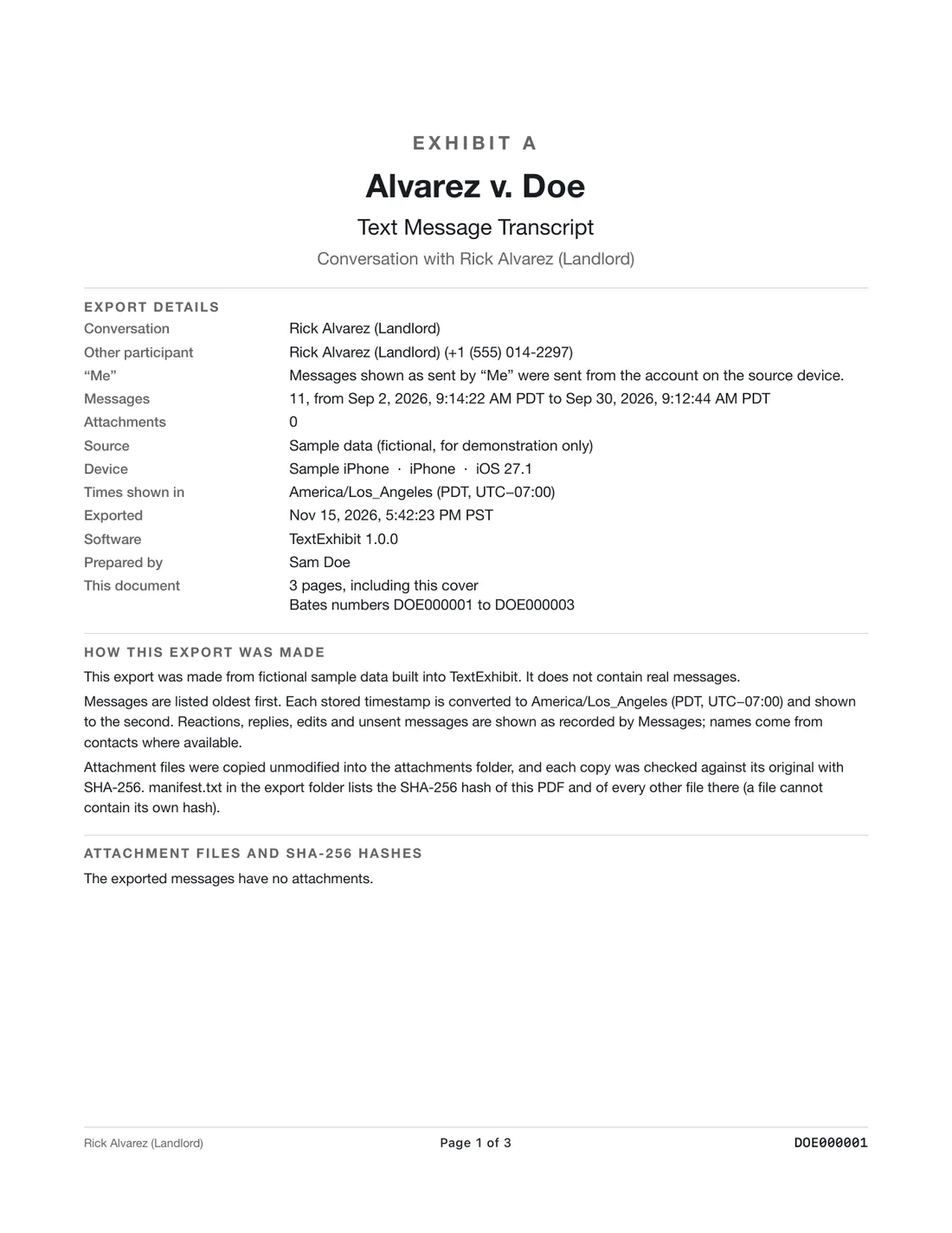
Step by step in Preview
- Export each conversation with TextExhibit (one conversation at a time). Give each a label, such as Exhibit A, B, C.
- Open the first PDF in Preview and choose View, Thumbnails.
- Open the second PDF, select all its thumbnails with Command-A and drag them to the end of the first file's sidebar.
- Repeat for the rest. Choose File, Save as to keep the original PDFs and save the merged file under a new name.
Why keep conversations separate inside the file
- Each export has a cover page that states the source, device, date range and message count. Keep it so each section describes itself.
- If the same person has two numbers, treat them as two threads and say so in a short note on top.
- If you number exhibits, give each thread its own letter or number. See numbering exhibits.
Page numbers and Bates numbers
Each export numbers its own pages from 1. After merging, page numbers repeat in each section. If you need one running series across the whole file, choose Bates numbering for each export with a prefix and continue the starting number for each one. Read Bates numbering for the method.
Order of sections
Put the threads in an order that helps the reader, such as oldest first, or by the importance of the person, and say which in the index. Add a divider page with the exhibit label before each, if you like, and keep the cover page of each export. Whatever order you choose, use it consistently in the index, the page numbers and your notes.
What to keep in mind
- Merging does not change the content, but it breaks the hash values in the manifest only if you treat the merged file as an original. Keep the individual PDFs and the manifest too.
- TextExhibit exports one conversation at a time for now; there is no all-in-one merge inside the app.
Questions
Can I merge a group chat and a one-to-one chat?
Yes, as separate sections. They are different conversations and should stay labeled as such.
Does merging make the PDF bigger?
The merged file is about the sum of its parts.
Can I merge CSVs into one spreadsheet?
Yes. Open the first, paste the rows of the others below, and add a column naming the conversation.
Do I have to merge?
No. Separate files with an index work too.
Can I add a table of contents?
Yes, as a page you write.
Sources
- Preview User Guide for Mac (Apple Support) (checked November 15, 2026)
Export the whole conversation
TextExhibit turns a conversation into one PDF with exact times, names and numbers, photos in place and page numbers, on your Mac. Free to preview; $24.99 once to export.