Blog · November 19, 2026
One Dokploy panel, many servers: how I deploy everything from one place
Install Dokploy once on a Hostinger VPS, add your other servers over SSH, and deploy apps, databases and analytics to any of them from a single dashboard. Step by step.

Once you have more than one server, the annoying part isn't the cost. It's remembering which app lives where, SSH-ing into each box, and keeping Docker, proxies and certificates in sync.
My fix: install Dokploy on one machine, then connect every other server to it. From one dashboard I deploy to any of them, see their logs and restart things. I never log into the other boxes anymore.
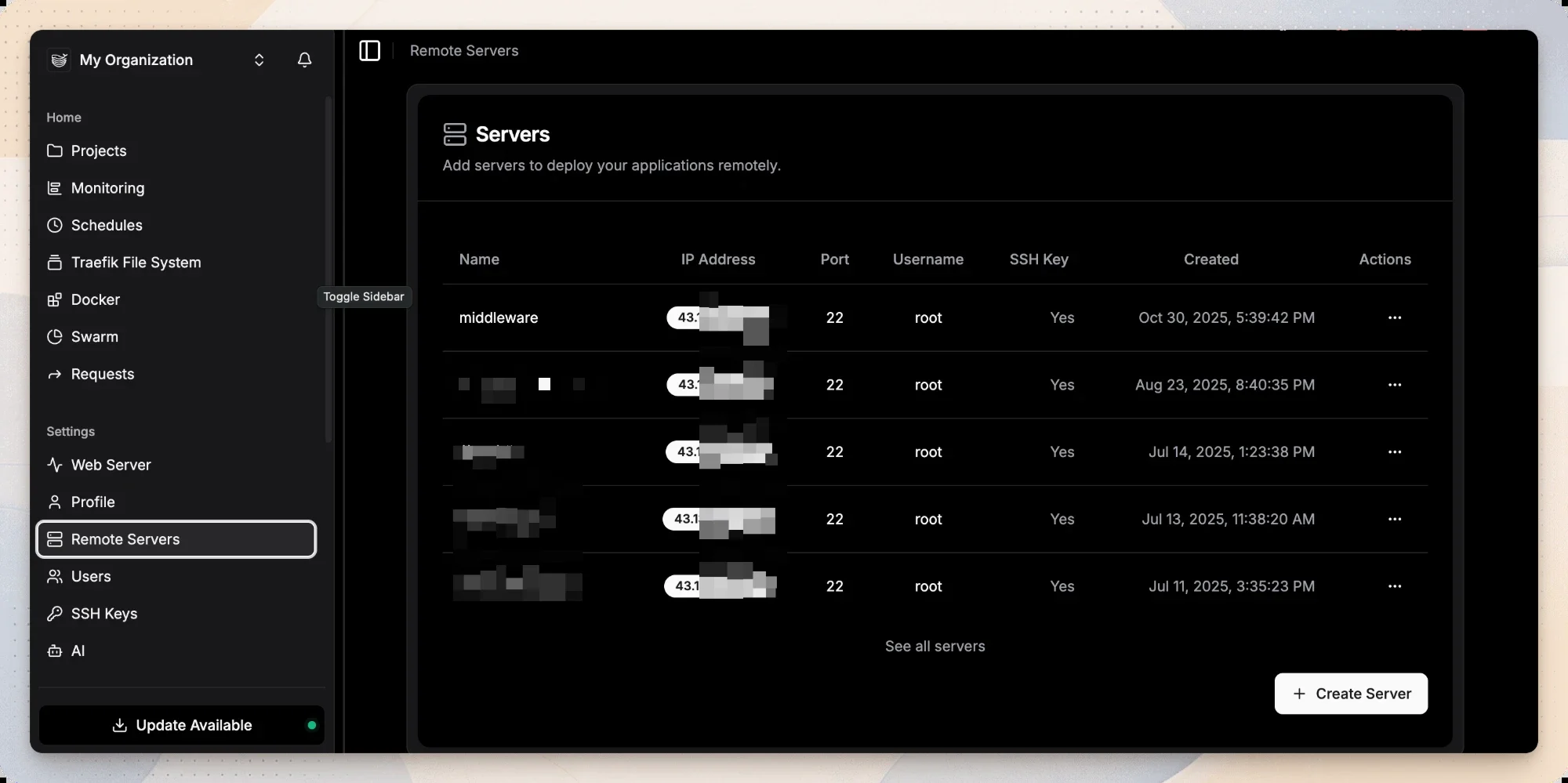
That's my Remote Servers page: servers from other providers, all controlled from the Dokploy that runs on my Hostinger KVM 4.
The Hostinger links here are my referral links: you get a discount, I get a small credit.
What you need
- One VPS for the Dokploy panel. I use a Hostinger KVM 4 (4 vCPU, 16 GB RAM). It runs the panel and real workloads: a SaaS, two analytics tools, Postgres and Redis, at about 12% CPU. See what's on it.
- Any other servers you want to manage. Any provider works, as long as you can SSH in as root.
Step 1: Install Dokploy on the main server
SSH into the VPS and run the official installer:
curl -sSL https://dokploy.com/install.sh | shIt installs Docker and starts Dokploy. Then open http://<your-server-ip>:3000 and create the admin account.
On Hostinger, check the firewall first: the VPS firewall drops all incoming traffic by default, so add accept rules for 22, 80, 443 and 3000 in the panel. No command line needed.
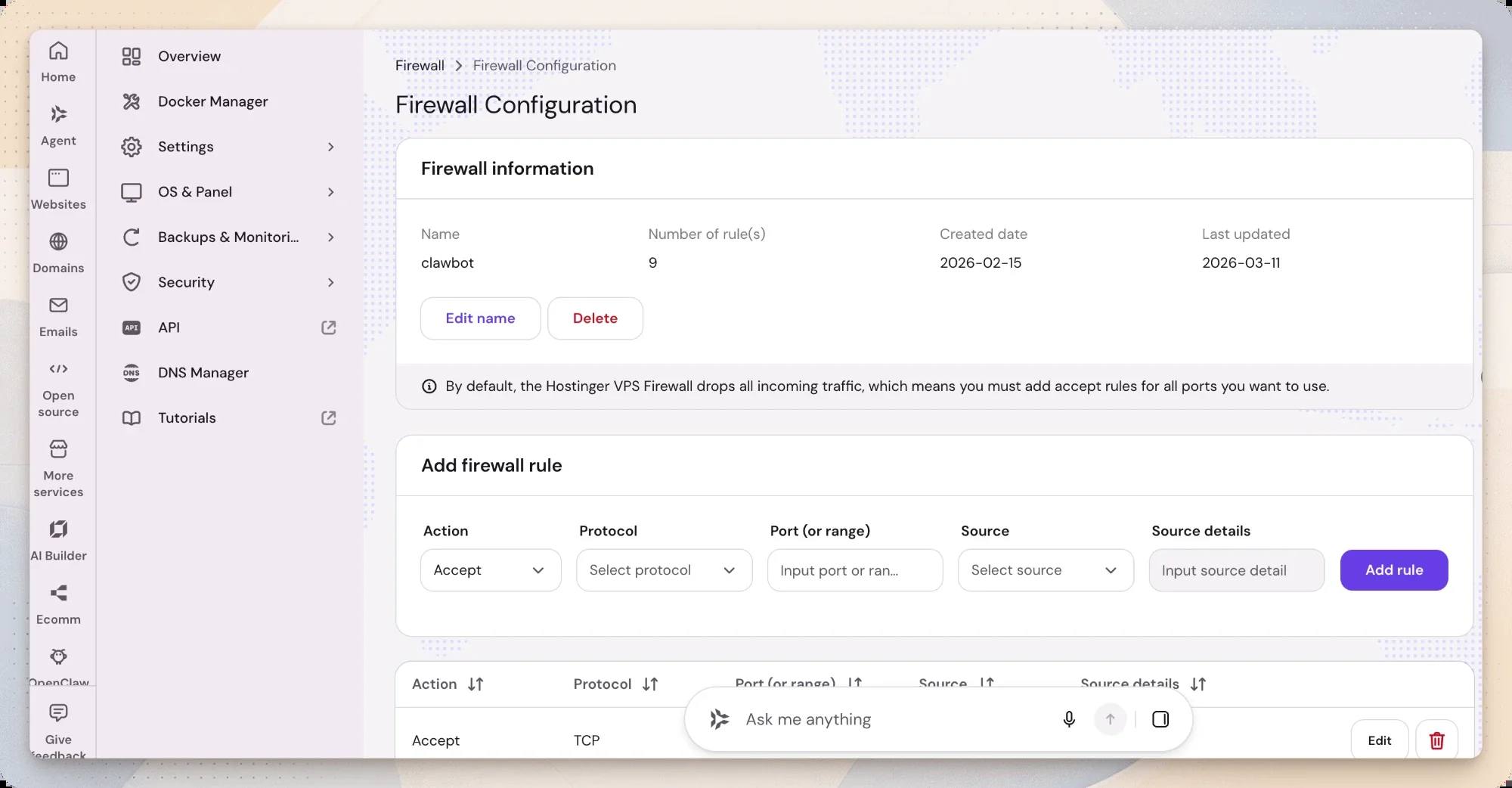
Once you've pointed a domain at the panel, you can close 3000 again.
Step 2: Create an SSH key in Dokploy
Go to Settings → SSH Keys and generate a key. Copy the public key and add it to ~/.ssh/authorized_keys on each server you want to connect.
Step 3: Add your other servers
Go to Settings → Remote Servers → Create Server and fill in:
- Name: something you'll recognise, like
middleware - IP address and port (usually 22)
- Username:
root - SSH key: the one from step 2
Then run Setup Server. Dokploy installs Docker and its proxy on that machine for you. Repeat for each server.
Step 4: Deploy anything, anywhere
Create a project, add a service (an app from Git, a Docker image, a Compose file or a database) and pick which server it should run on. That's it. The same screen works for every machine.
Here's how I've split my own setup into projects:
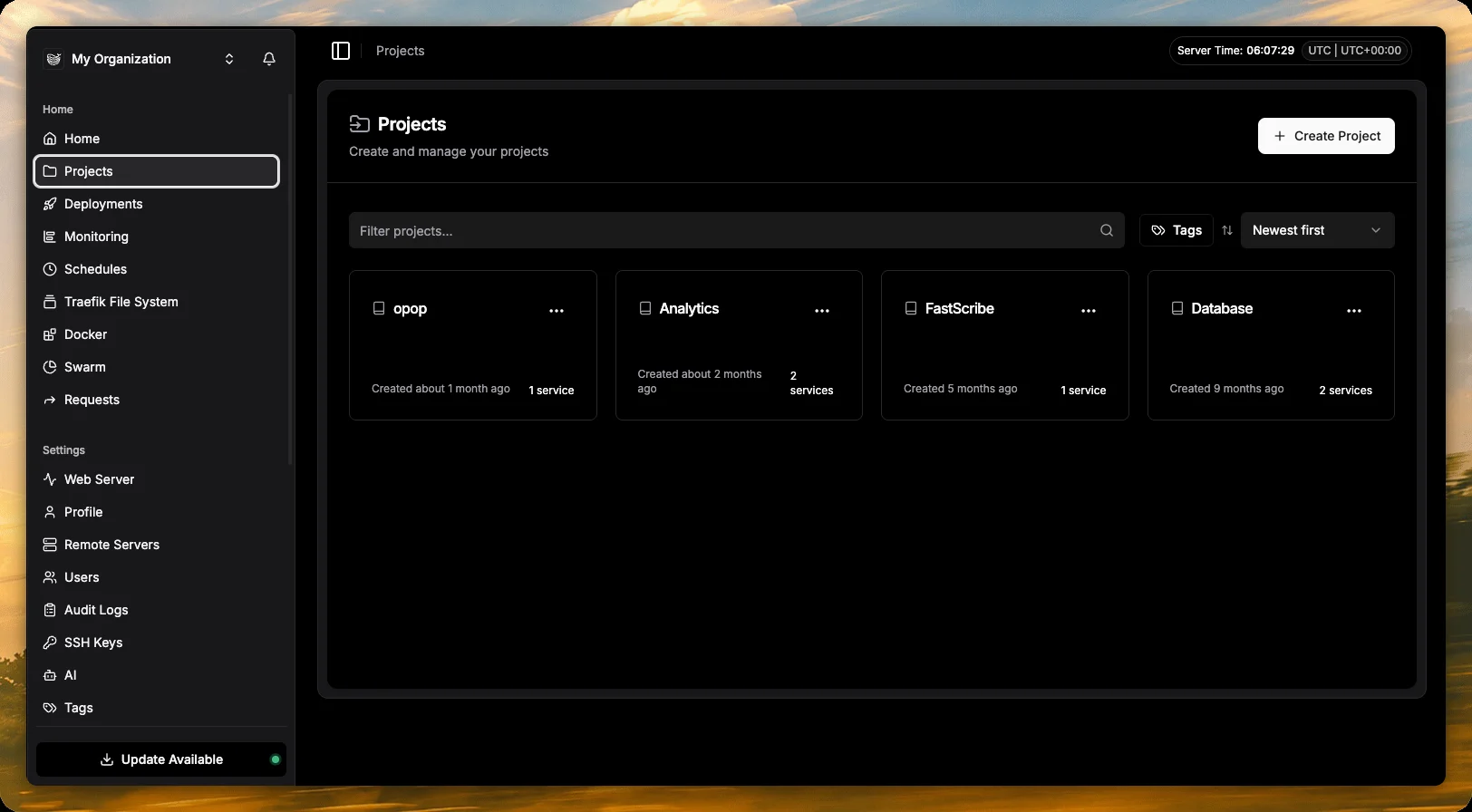
- FastScribe: the app itself
- Database: Postgres and Redis
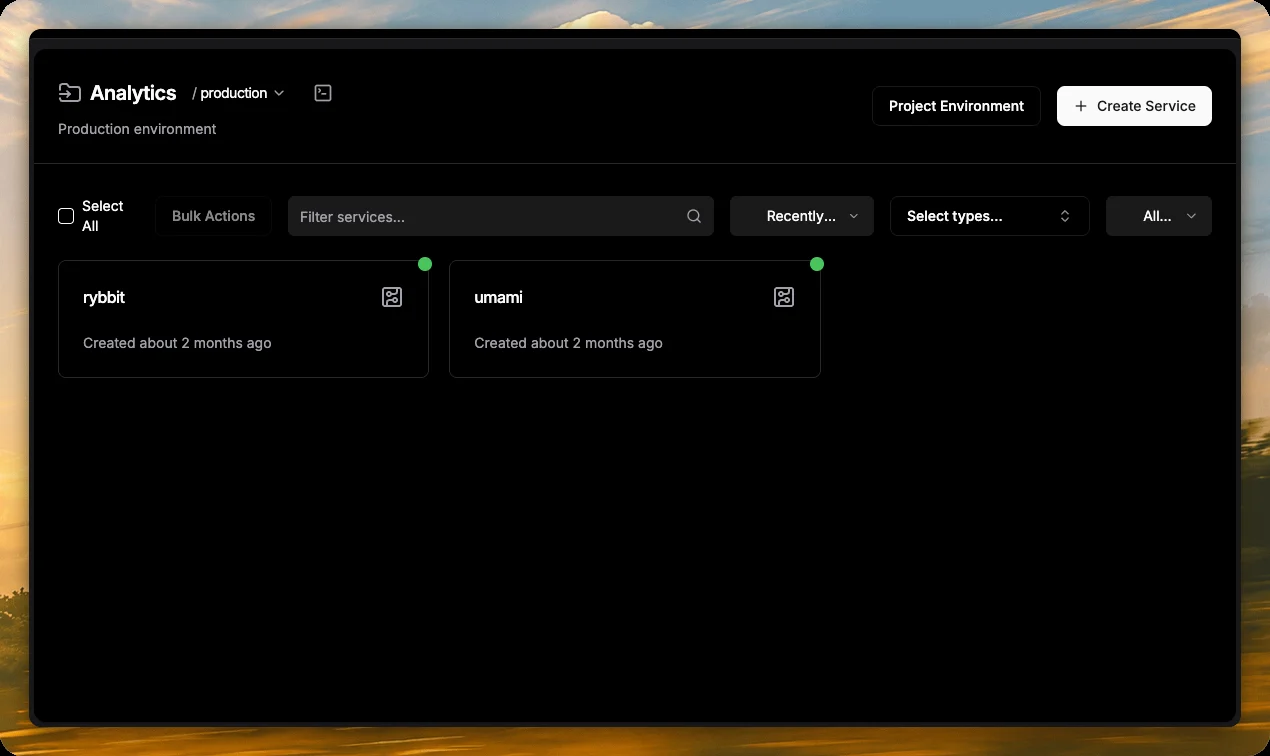
- Analytics: Umami and Rybbit, both from Dokploy's one-click templates
Why this setup works for indie developers
- One place to look. Deployments, logs, monitoring and scheduled jobs for every server sit in the same sidebar.
- Put heavy stuff where it's cheap. Keep the panel and your main apps on a roomy VPS, and push side projects or workers to other boxes.
- No lock-in. Dokploy is open source, and everything runs as normal Docker containers on servers you own.
- Easy to grow. New product? Create a project, pick a server, deploy. New server? Add it in step 3.
Start with the right main server
The panel box should have headroom, since it runs Dokploy plus whatever you deploy to it. KVM 4 gives you 16 GB of RAM for about $10/month on a 24-month term with my referral code. It's the plan I use for every server I buy from Hostinger.
Black Friday pricing ends in a few days, and the discount only works for new accounts. Use code P3SLWB1995OY at checkout, or: