Mac screen recording file too large: how to make it smaller
Mac screen recordings are large because the Screenshot app (Shift-Command-5) records your display at its full Retina resolution, so the free fix is to open the recording in QuickTime Player and choose File, Export As, 1080p, which often makes it a fraction of the size while text stays readable. To hit a limit such as 20 MB for Discord or 25 MB for Gmail, or to shrink every new recording automatically, use a tool that encodes to a target size, such as SendSize.
Compress it for where it is going Discord, Gmail, Outlook or WhatsApp
Why screen recordings are so big
A 14-inch MacBook Pro display is 3024 by 1964 pixels, more than three times the pixels of 1080p, and the recorder saves a MOV with a high bitrate so text stays crisp. A few minutes can be hundreds of megabytes. Recording only part of the screen (Record Selected Portion in the Shift-Command-5 toolbar) makes smaller files from the start.
Screen recordings are also the kind of video that compresses well: most of the screen does not change from frame to frame. With a good encoder, a much smaller file can still show every label. In our test, a 26-second 1080p screen recording at 60 frames per second went from 5.2 MB to 0.99 MB with x264 (slow preset, two passes), and the icon labels were still readable, as in the frames on this page.
Free way: QuickTime Player
- Open the recording (it is on your Desktop or in the folder you chose under Options).
- Choose Edit, Trim to cut the start and the end where you moved to the Stop button.
- Choose File, Export As, 1080p. For a short demo that will be watched on a phone, 720p is enough.
- Check the size in Finder with Command-I.
When 1080p is still too big
- Lower the frame rate. Recordings are 60 frames per second; a slide walkthrough looks the same at 30 and is about half the data.
- Remove sound if there is none worth hearing. Audio is small, but a silent track still adds a little.
- Aim at a size. Size is bitrate times length, so the encoder should be told the target and spend the bits where the screen changes.
- Make a GIF for a few seconds of interaction; see screen recording to GIF.
With SendSize
SendSize uses x264 (slow preset, two passes) for target sizes, which keeps edges and small text readable better than fast hardware encoding at low bitrates. Slack takes files up to 1 GB, so there it is about upload speed rather than the limit.
- Pick Discord, Gmail or Slack, or type a size.
- Drop in the recording, or the folder your recordings go to.
- With a license, turn on folder watching for that folder: every new recording gets a small copy next to it as soon as you stop recording.
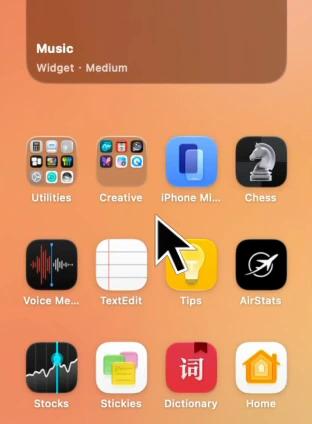
Before5.2 MB
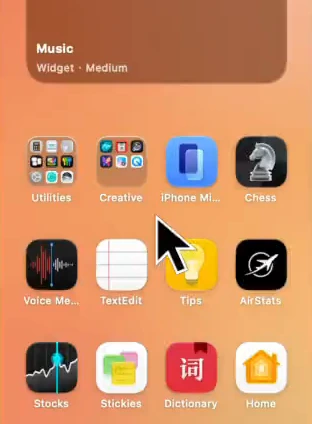
After0.99 MB
What to keep in mind
- At very small sizes, fast movement such as scrolling or a video playing on screen gets blocky first. Keep recordings short and move slowly.
- Exporting from QuickTime Player can take a while for long recordings; it uses the Mac's built-in encoder.
- Your numbers will differ from our test; it depends on what is on screen.
Questions
Why is my Mac screen recording so large?
It records the whole Retina display at 60 frames per second with a high bitrate. A few minutes can be hundreds of megabytes.
How do I reduce a screen recording's size for free?
Open it in QuickTime Player and choose File, Export As, 1080p or 720p. Trim it first with Edit, Trim.
Will the text still be readable?
At 1080p, yes for most screens. Very small text from a large display may need the full resolution or recording only part of the screen.
Can screen recordings be compressed automatically?
SendSize can watch your recordings folder and make a smaller copy of each new file. That needs a license.
Sources
- Discord: File Attachments FAQ (checked November 16, 2026)
- Gmail Help: Send attachments with your Gmail message (checked November 16, 2026)
- Slack Help Center: Add files to Slack (checked November 16, 2026)
- Apple Support: How to record the screen on Mac (checked November 16, 2026)
Do it with SendSize
Compress it for where it is going
PresetDiscord, Gmail, Outlook or WhatsApp
- Pick where the video is going, or type a limit under Each file under.
- Drop in the video, several, or a folder.
- Send the MP4 from the new folder next to the original.
Measured on an M3131 MB → 18.6 MB −86%
Free for 5 files at a time. $19.99 once for any number, on 3 Macs.