Automate it.
Every way to compress with SendSize without dragging files onto its window. All of it runs on your Mac, like the app.
Five ways to start it
| Way | How to set it up | Free version |
|---|---|---|
| Finder | Right-click files or folders → Quick Actions or Services → Compress with SendSize. It uses the last use you picked. | 5 files at a time |
| Watch folders | Watch folders, at the bottom of the window. New files are compressed once they finish writing; the results go into a folder next to the watched one. | License |
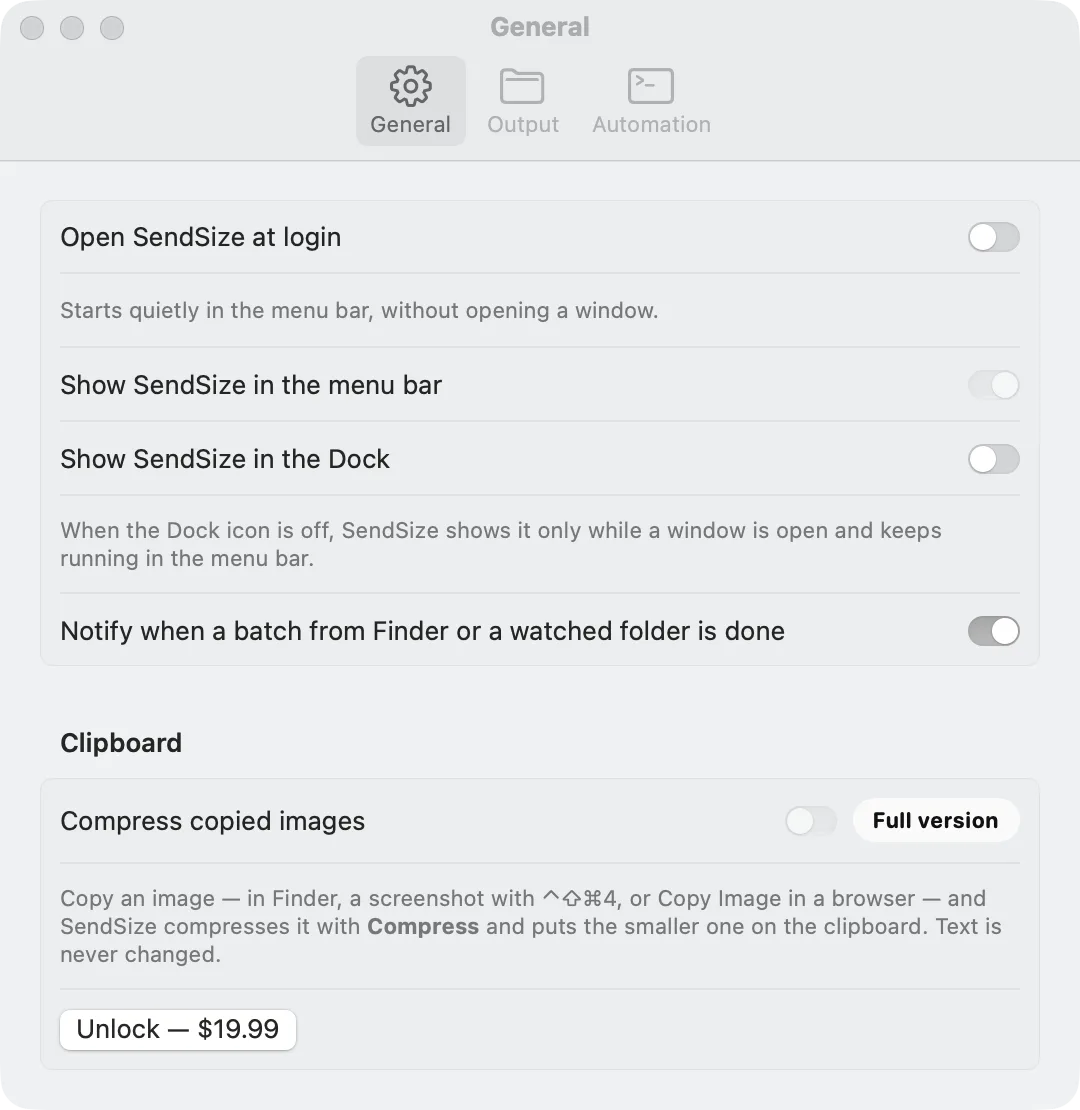
| Clipboard | Settings → General → Clipboard → Compress copied images. Image files copied in Finder, screenshots copied with Control-Shift-Command-4, and Copy Image in a browser. | License |
| Link | sendsize://compress?path=… from Shortcuts, Raycast, Alfred or a script. Details below. | 5 files at a time |
| Command line | Settings → Automation → Install…, then sendsize compress in Terminal. Details below. | 5 files at a time |
The sendsize:// link
Open a link in this form and SendSize compresses the files in the background, without opening its window, then posts a notification. Anything that can open a URL can use it: Shortcuts, Raycast, Alfred, a script, or open in Terminal.
sendsize://compress?path=<path>&path=<another path>&preset=<use id>path: a file or folder to compress, URL-encoded (a slash is%2F, a space%20). It must start with / or ~. Add anotherpath=for each further file.preset: the use, by its id (table below). Leave it out to use the one picked in the app;customuses the number under Each file under.- The action is always
compress. A wrong action, a relative path or an unknown use is never guessed at: SendSize posts a notification that says what is wrong.
For example, this compresses clip.mov on the Desktop for Discord. Run it in Terminal, or paste the part in quotes into a browser's address bar:
open "sendsize://compress?path=~%2FDesktop%2Fclip.mov&preset=discord"- Results go where Settings → Output says, with one exception: a link never replaces originals. If Output is set to Replace the originals, a link puts the results in a new folder next to them instead, because a web page can open a link too.
- The Advanced settings and the quality slider under Compress apply, as they do to a normal batch.
- Settings → Automation shows a ready-made example with a Copy button.
Use ids
The same ids work in a link (preset=) and on the command line (--preset). sendsize presets prints the list with each use's target.
| Id | Use | What it does |
|---|---|---|
compress | Compress | No limit: every file smaller, quality first. The default. |
discord | Discord | Each file under 20 MB, a free account's limit. |
discord-nitro-basic | Discord Nitro Basic | Each file under 50 MB. |
gmail | Gmail | Under 25 MB, Gmail's attachment limit. |
outlook | Outlook | Under 20 MB, the Outlook.com message limit. |
whatsapp | Videos under 64 MB. | |
web | Website | Fast-loading images (WebP) and video for a web page. |
save-space | Save space | Looks the same, takes less room; the format stays. |
smallest | Smallest | As small as still looks fine. |
heic-to-jpg | HEIC to JPG | iPhone photos as JPG; other files keep their format. |
video-to-gif | Video to GIF | Looping GIFs under 10 MB. |
custom | Custom | Links only: the size typed under Each file under in the app. On the command line, use --max-mb. |
Shortcuts
The Shortcuts app on the Mac can run SendSize in two ways. The first hands any files you give it to the sendsize command, for example from a Quick Action in Finder; the second only needs the app.
With the sendsize command (Run Shell Script)
- Install the command first: SendSize → Settings → Automation → Install….
- In Shortcuts, make a new shortcut. In its details, turn on Use as Quick Action and tick Finder, so it receives files.
- Add the Run Shell Script action and set Pass Input to as arguments.
- Paste the script below. Change
discordto the use you want. - In Finder, select files, right-click → Quick Actions → your shortcut.
for f in "$@"; do
  /usr/local/bin/sendsize compress "$f" --preset discord
done
With a link (Open URLs)
- Add Get Details of Files and choose File Path, to get the path of the file the shortcut receives.
- Add URL Encode, to encode that path.
- Add Text with
sendsize://compress?preset=discord&path=followed by the encoded path. - Add Open URLs.
The script calls /usr/local/bin/sendsize by its full path, because a shortcut does not always see the same PATH as Terminal. For several files, put the link actions inside Repeat with Each; the script handles all of them as it is.
Raycast
Raycast runs small scripts as commands (Script Commands). The one below compresses the files selected in Finder for Discord, with the sendsize command. Raycast can also open a sendsize:// link as a Quicklink.
#!/bin/bash
# @raycast.schemaVersion 1
# @raycast.title Compress for Discord
# @raycast.mode silent
# @raycast.packageName SendSize

# The files selected in Finder, one path per line
osascript -e 'tell application "Finder" to set s to selection as alias list' \
  -e 'set out to ""' \
  -e 'repeat with f in s' -e 'set out to out & POSIX path of f & linefeed' -e 'end repeat' -e 'return out' |
while IFS= read -r f; do
  [ -n "$f" ] && /usr/local/bin/sendsize compress "$f" --preset discord
done- Install the command: SendSize → Settings → Automation → Install….
- In Raycast, run Create Script Command, choose Bash, and paste the script above.
- Select files in Finder, open Raycast and run Compress for Discord.
Shortcuts and Raycast are made by others and their menus change from time to time. The link format and the command options on this page do not depend on them.
The sendsize command
SendSize comes with a command-line tool, sendsize. It is the same engine as the app, with the same uses, for scripts, scheduled jobs and other tools.
Install
- Open SendSize → Settings → Automation and click Install… under Terminal.
- It makes
/usr/local/bin/sendsize, a link to the tool inside the app, so the command updates when the app does. If that folder needs an administrator, macOS asks for your password; Cancel leaves everything as it was. - Open a new Terminal window and type
sendsize. To take it away again, click Remove in the same place.
Options
sendsize with no arguments prints this, in English, exactly as below:
usage:
  sendsize compress <file-or-folder>... [options]
    --preset <id>        a use (see `sendsize presets`); default: compress
    --max-mb <MB>        each file at most this many megabytes instead of a use
    --quality <level>    smallest | smaller | balanced | better | high (uses without a size limit)
    --out <folder>       put results in this folder (the folder tree is rebuilt inside)
    --suffix <text>      results next to the originals, named "<name><text>" (e.g. -small)
    --subfolder <name>   results in a folder with this name inside each original's folder
    --replace            replace the originals; they go to the Trash (same name and dates)
    --force              also compress files SendSize already made
    --limit <N>          compress at most N files
  sendsize presets       list uses
  sendsize helpers       show which bundled tools were found
Without an option, results go into a new "… (SendSize)" folder next to the originals.| Option | What it does |
|---|---|
--preset <id> | The use, by id (table above). Without it: compress. |
--max-mb <MB> | Each file at most this many megabytes, instead of a use, for example --max-mb 8. |
--quality <level> | For uses without a size limit (Compress, Website, Save space, Smallest, HEIC to JPG): smallest, smaller, balanced, better or high, the five steps of the slider in the app. |
--out <folder> | The results go into this folder, with the subfolders rebuilt inside it. |
--suffix <text> | The results go next to the originals, with this text added to the name: --suffix -small makes photo-small.jpg. |
--subfolder <name> | The results go into a folder with this name inside each original's folder. |
--replace | Replace the originals. They go to the Trash with their names and dates, so Put Back in Finder restores them. A file that would not get smaller is left alone. |
--force | Also compress files SendSize already made. Without it they are skipped, so running the same command twice does not compress twice. |
--limit <N> | Compress at most this many files. |
Examples
One video for Discord, into a new “… (SendSize)” folder next to it:
sendsize compress ~/Movies/clip.mov --preset discordA whole folder of photos, with the results in a folder called Smaller inside each folder:
sendsize compress ~/Pictures/Trip --preset save-space --subfolder SmallerEvery PNG on the Desktop, replacing the originals (they go to the Trash):
sendsize compress ~/Desktop/*.png --replaceA talk under 50 MB, with the result in a folder on the Desktop:
sendsize compress ~/Movies/talk.mov --max-mb 50 --out ~/Desktop/SendA folder of screenshots one step smaller than the default, saved next to each file with -small in the name:
sendsize compress ~/Desktop/Screenshots --quality smaller --suffix -smallGood to know
- Free version: the installed command follows the app's license. Without a license it compresses 5 files at a time and says so; with one, any number. The license is checked on your Mac, without going online.
- Exit codes: 0 when everything worked, 1 when a file failed or something else went wrong, 2 for a wrong option (the usage is printed).
- Files SendSize already made: they carry a small mark in the file's extended attributes and are skipped unless you add
--force. Copying a file in Finder keeps the mark. - Where the work happens: on your Mac, with the tools inside the app (FFmpeg and the others on the open source page). Nothing is uploaded.
- Progress: one line per file with the size before and after, then a summary of how much was saved.
Links and the command line come with the app. Free for 5 files at a time; $19.99 once for any number, watch folders and the clipboard.